

Settings: General
Choose Configuration in the left menu, then the General tab.
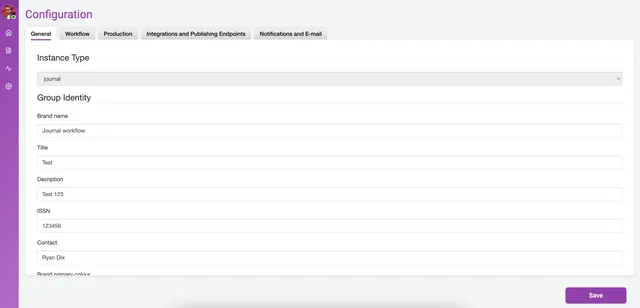
Instance type
Section titled “Instance type”Kotahi comes with preset configurations called instance types. Each group (tenant) has one, and it normally cannot be changed once an administrator has set it — but you can create as many groups as you like, each with its own instance type. Instance types are set by a developer in the system configuration (.env) file. See Technology supporting people for what else sits below the settings screens.
The instance types are:
- journal — a typical journal workflow
- prc — a publish-review-curate workflow
- preprint1 — submit, review and publish from a single form
- preprint2 — as preprint1, and can import preprints
Group identity
Section titled “Group identity”Basic branding for your group.
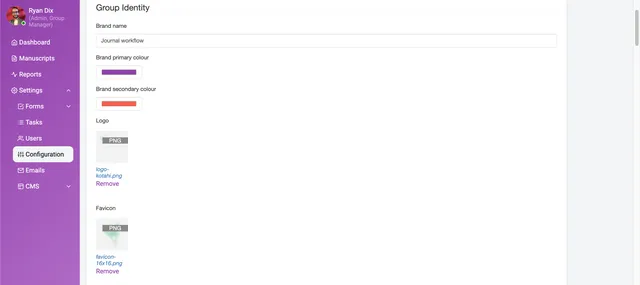
Brand name — the name of the group. It appears in the dropdown at login on installations with more than one group.
Title — the title of your publication.
Description — a brief summary of what your publication is for.
ISSN — your publication’s ISSN, if it has one.
Contact — contact details, as plain text.
Brand primary colour — used for the left-hand menu, some buttons and title text.
Brand secondary colour — used for additional highlighting.
Logo — the logo on the group login page.
Favicon — the icon shown on the browser tab.