

Produce a PDF
Turning a manuscript into a typeset PDF, and changing how that PDF looks.
Kotahi stores manuscripts as HTML. To produce a PDF it runs that HTML through Paged.js, an open-source pagination engine developed by Coko, which applies your stylesheet and breaks the content into pages.
With the default template you do not need to do anything — the PDF is produced for you. Everything below is for changing how it looks.
How a PDF is made
Section titled “How a PDF is made”So customising a PDF comes down to two things: a template that says what goes on the page and in what order, and a stylesheet that says how it looks. The template can pull real values out of Kotahi — the title, the authors, the DOI — so one template serves every manuscript.
Paged.js documents its own CSS rules in detail, and that documentation is better than anything we could repeat here. Start with the Paged.js documentation once you know where Kotahi keeps things.
Where the controls are
Section titled “Where the controls are”Open a manuscript’s Production page from the Manuscripts list. It has seven tabs:
| Tab | What it is for |
|---|---|
| Editor | Writing and structuring the article itself, managing images, citations and JATS XML |
| History | Previous versions of the manuscript |
| PDF template | The HTML template that lays out the PDF |
| PDF CSS | The stylesheet applied when the PDF is generated |
| PDF assets | Logos, images, fonts and scripts the template can use |
| PDF metadata | The list of values you can pull in from Kotahi, with the code to paste |
| Ai Design Studio (Beta) | Changing the design by describing what you want |
Getting a copy of the file
Section titled “Getting a copy of the file”The Production page has a Download control, but it appears only when there is something to download. It is rendered when the manuscript has manuscript text — so a submission with no uploaded file, or one whose authors were never given an editor to write in, shows no Download control at all.
This is worth knowing before you go looking for it: if it is not there, the likeliest reason is that the manuscript in front of you is empty.
The template
Section titled “The template”PDF template holds the HTML. Kotahi ships a working default, and reading it is the fastest way to understand the conventions — it is a complete, functioning example rather than a skeleton.
The templating language is Nunjucks, which adds variables, loops and conditions to ordinary HTML.
The head works as it would on any web page: the lang attribute drives
hyphenation, and links to custom fonts or stylesheets go here. Anything you
link must exist in PDF assets first.
Scripts are the exception. Because Paged.js runs on the server, <script> tags
in the head are not executed. To run your own JavaScript, upload it to PDF
assets instead — Kotahi picks up any .js file there when the PDF is
generated and places it beside the HTML, so a <script> tag can reference it by
file name alone, with no path. Paged.js documents
hooks and custom JavaScript
for this.
The body is where the layout lives — a title page, the article, whatever your design needs.
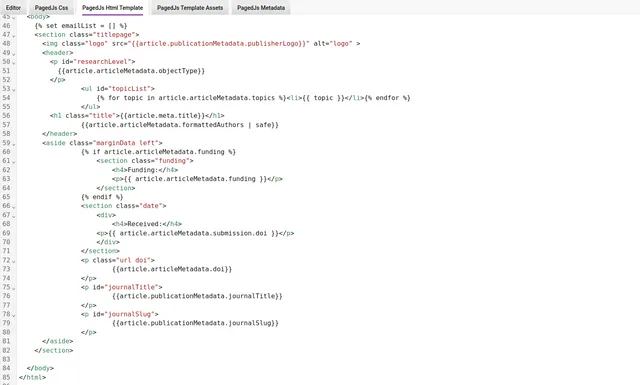
HTML and template variables sit side by side. In this example an ordinary
paragraph carries an id for the CSS to target, and the shortcode between the
tags pulls the journal’s name out of Kotahi:

The same pattern brings in the article body, and loops repeat a block for every item in a list — every topic, every author.
PDF metadata lists everything available this way. Each field is shown beside its shortcode with a copy icon, so you can paste it straight into the template rather than typing it.
Assets
Section titled “Assets”PDF assets is where fonts, images and scripts are uploaded. Files can be
uploaded in batches, and each one has a copy link that produces the correct
line to paste into the template — a <link> for a font, an <img> for an
image, and so on.
You do not need to preload images. Paged.js waits for them before generating the PDF.
PDF CSS holds the stylesheet. As with the template, Kotahi’s default is the best starting point: read it first, then use the Paged.js documentation for anything it does not already show you. Page-level furniture such as page numbers is controlled here too, not in the template.
Ai Design Studio (Beta)
Section titled “Ai Design Studio (Beta)”The Design Studio changes the PDF’s design from a description rather than by editing CSS — adjusting layout, image placement, or widows and orphans.
It needs an OpenAI key. Choose Configuration in the left menu, then the Integrations and Publishing Endpoints tab, and add it under AI Design Studio & AI Assistant.
Select an element in the content column on the left, and the PDF preview on the right shows the result.
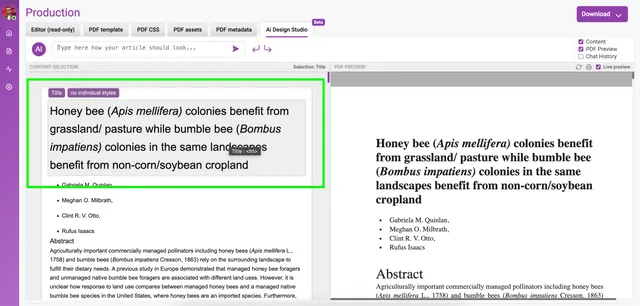
Then describe the change you want.
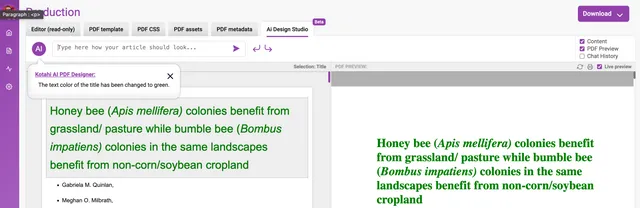
Undo and redo are available, and a chat history records what was asked for.